
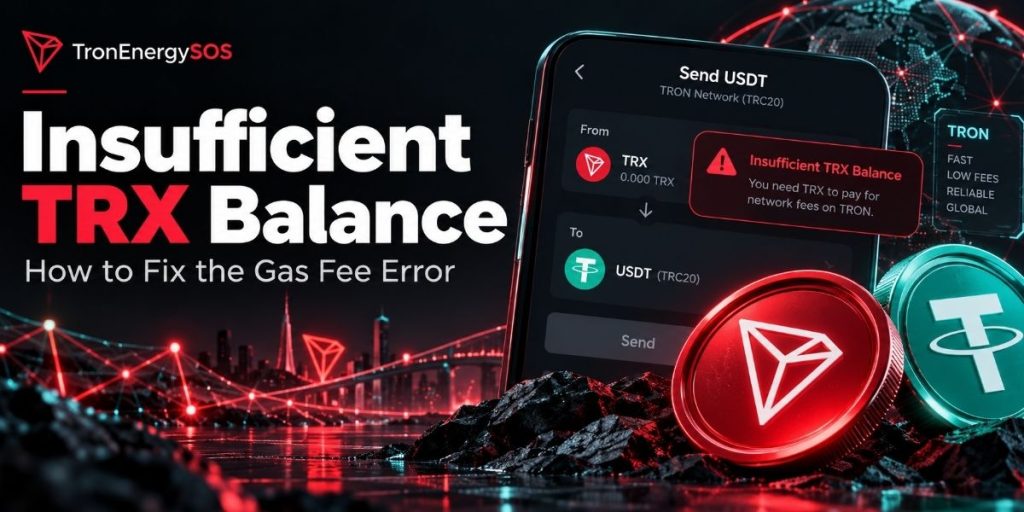
Seeing “Not Enough TRX” or “Insufficient TRX Balance for Gas Fee” when sending USDT? Your wallet may have enough tokens to transfer but insufficient resources or spendable TRX to cover the transaction. This guide applies to self-custody wallets; exchanges set their own withdrawal fees.
Quick fix: Confirm that you are sending USDT on TRON, check the current fee estimate, and either add native TRX to the sending address or obtain sufficient Energy and Bandwidth. Recheck the transfer before signing.
What Does “Insufficient TRX Balance for Gas Fee” Mean?
A USDT TRC-20 transfer calls a smart contract. It uses Energy for execution and Bandwidth for transaction data. When the applicable resources cannot cover the transaction, TRON can burn TRX to pay the required costs.
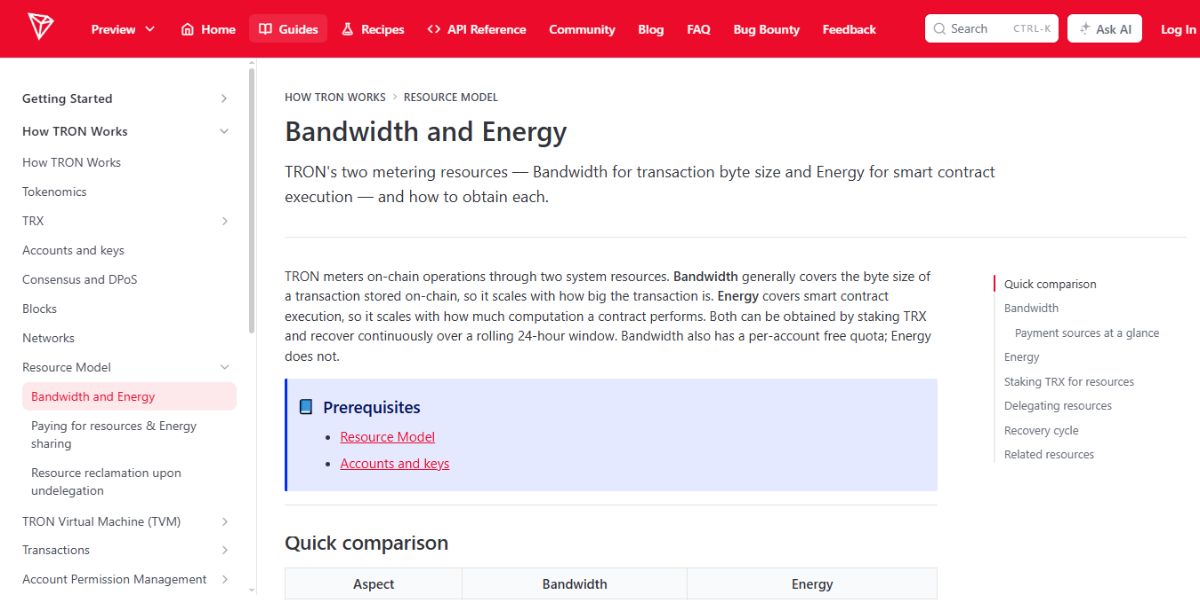
If your available TRX cannot cover those costs, your wallet may block the transfer. Simply holding more USDT does not solve this resource shortage. The official TRON Energy and Bandwidth documentation explains how the two resources work.
How to Fix the Error When Sending USDT
1. Confirm the Network and Sending Account
Make sure your token is USDT on TRON (TRC-20) and the receiving platform supports the same network. This guide does not apply to USDT on Ethereum or other chains.
Check the exact sending address and confirm that the account is activated on TRON. Creating an address in a wallet app does not automatically activate its on-chain account.
2. Check the Fee and Add Spendable TRX If Needed
Open the transfer preview for your actual recipient and amount. Compare the estimated fee with the wallet’s available TRX balance, rather than its total holdings. Staked TRX is not a liquid balance available for burning as fees.
If you choose to fund the fee, send native TRX on the TRON network to the same address holding your USDT. Wait for confirmation, refresh the balance, and review a new transfer estimate.
There is no fixed TRX top-up that guarantees every USDT transfer. Resource availability, the recipient’s token balance state, and contract conditions can change the requirement.
3. Obtain Energy and Check Bandwidth
Alternatively, another account can delegate Energy to your activated sending address. You can also Rent TRON Energy through a service like TronMax to obtain the resources needed for your USDT transfer without adding TRX directly to your wallet.
Before renting, check the required Energy amount, rental duration, and total cost. Make sure the resources are delegated to your sending address and verify that they have arrived before proceeding.
Delegate to the sender, not the recipient. Also check Bandwidth: renting Energy alone does not necessarily cover the whole transaction.
Staking TRX can provide resources too, but it locks the staked balance and has an unstaking waiting period. It is different from keeping spendable TRX for fees.
For the requirements and steps for transferring with a zero TRX balance, read how to send USDT on TRON without TRX
4. Review Your Wallet’s Supported Fee Options
Update your wallet through its official distribution channel and check the current confirmation screen. Supported payment options can differ by wallet and transfer flow.
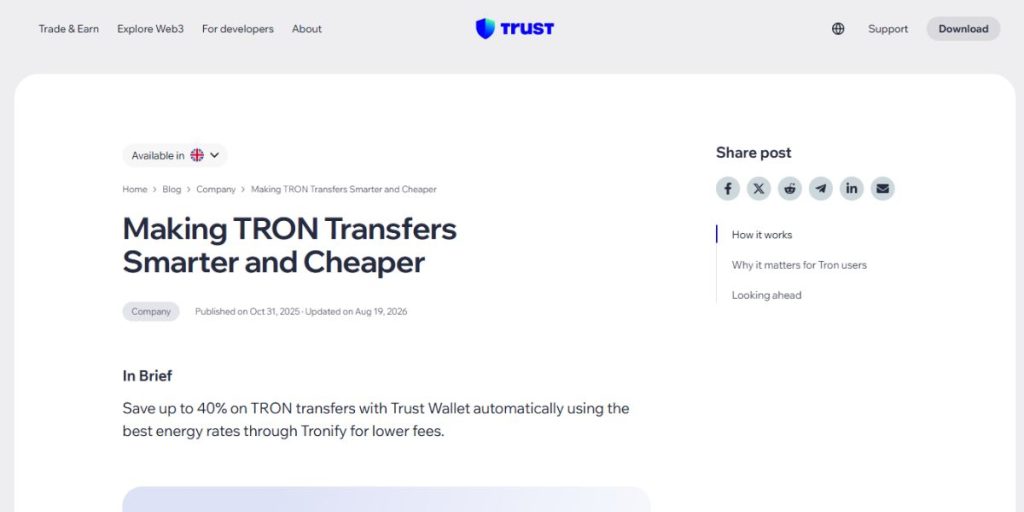
For example, Trust Wallet’s TRON transfer feature can rent resources through Tronify and select TRX or USDT for the rental payment when active. Review the total displayed cost; this is a wallet service, not TRON automatically deducting ordinary network fees from your USDT.
Why Does the Error Remain After Adding TRX or Renting Energy?
- Wrong address: The TRX or delegated resources went to a different account.
- Insufficient resources: Energy is below the updated estimate, Bandwidth is insufficient, or the delegation is no longer available.
- Funds not yet available: The top-up is unconfirmed, the wallet has not refreshed, or the TRX you counted is staked.
If a submitted transaction instead reports OUT_OF_ENERGY, inspect its execution result. This can involve an insufficient Energy budget or a low fee_limit. Follow your wallet’s official settings guidance: raising the limit does not create TRX or resources, and the limit is not an automatic charge of that full amount.
Check the Transaction Before Retrying
A wallet warning alone does not establish the on-chain outcome. If there is a transaction ID, look it up on TRONSCAN and check its status, recipient, amount, and resource charges. If there is no ID, inspect the sending account’s recent transaction history.
Do not create another payment while an earlier transfer’s outcome is uncertain. A failed smart-contract transaction can still consume resources.
Never share your recovery phrase or private key with an Energy provider or someone offering to remove the error. Resource delegation uses your public address.
Frequently Asked Questions
Can I send USDT with zero TRX?
It may be possible if your account is activated, sufficient Energy and Bandwidth are available, and your wallet supports the flow. See our guide to sending USDT on TRON without TRX. Resource rental may still cost money.
Will sending less USDT fix the fee warning?
Not necessarily. Energy depends on contract execution and account state, rather than a simple percentage of the transferred amount. Re-estimate instead of assuming a smaller transfer will solve the problem.
Does waiting provide free Energy?
Existing staked or delegated resource capacity recovers gradually after use. Waiting does not give an account an automatic free Energy allocation if it has no such capacity.
Final Check
Before sending, verify the network, recipient, available TRX, Energy, and Bandwidth. Use the current estimate, review the final confirmation, and check any previous transaction before retrying.
Recent Comments